Customizing post background colors by status in WordPress can make your content management process better and enhance visual organization. In this tutorial, we are going to guide you through how you can easily set different background colors for posts depending on their status, for example, draft, published, or pending review.
Why Customize Post Background Colors?
Customizing background colors of posts by status in WordPress is an efficient method of simplifying content management. By graphically distinguishing posts according to their status, including draft, published, or pending review, you can easily see and organize your work. This approach minimizes confusion, particularly for big websites with many contributors or a high traffic of content.
Benefits of Using Different Colors for Post Statuses

Here are benefits of using different colors for post statuses:
- Improved Organization: Easily locate posts at a glance, saving time during content management.
- Effective Workflow Management: Quickly identify posts needing attention, like pending reviews or updates.
- Enhanced Productivity: Streamline publishing with a clear, visual system to reduce delays or errors.
- Aesthetic Appeal: Create a more engaging and user-friendly interface for content administrators.
Understanding WordPress Post Statuses
WordPress post statuses play a key role in managing content and ensuring a smooth workflow for publishing. Each post status serves a specific purpose, offering clarity on the state of a piece of content within the publishing pipeline.
- Draft: When a post is still being written or requires significant edits, it is saved in the Draft status. This ensures the work is not publicly visible on the website until it is ready to be shared.
- Pending Review: Content marked as Pending Review typically signals that it is completed by an author and awaits approval or edits from an editor. This status is especially useful for teams that integrate editorial oversight in their workflows.
- Published: Once a post is finalized and goes live on the website, it adopts the Published status. This makes the content publicly accessible and part of the site’s active content library.
- Scheduled: Posts marked as Scheduled are set to automatically publish at a specific future time and date. This status helps plan content releases and maintain a consistent publishing schedule.
- Private: Content given a Private status is only visible to logged-in users with appropriate permissions. This is ideal for internal resources or limited-access content.
- Trash: Should a post no longer be needed, it can be moved to Trash. Posts in Trash can be restored or permanently deleted, allowing for flexible content management.
Impact on Content Presentation and Management
Post statuses significantly influence both the back-end organization and the front-end presentation of content. For instance, Drafts and Pending Review posts are invisible to the public, ensuring incomplete or unapproved work does not alter the user experience. Scheduled posts enable a strategic publishing flow, preserving consistency without direct intervention.
Meanwhile, the Published, Private, and Trash statuses allow precise control over how content is presented to your audience or stored for internal purposes. By understanding and effectively utilizing WordPress post statuses, administrators can optimize productivity, maintain quality assurance, and ensure a well-organized content strategy.
Setting Up the Environment
Before customizing background colors in WordPress, ensure that you have a properly configured WordPress installation with administrative privileges. Verify that you have access to the WordPress dashboard and the relevant theme files either through the built-in theme editor or via an FTP client.
Additionally, familiarize yourself with basic CSS and, if possible, create a child theme to prevent losing customizations during theme updates. Having a backup of your site is also essential to safeguard against potential errors during the customization process.
Adding Custom CSS for Background Colors
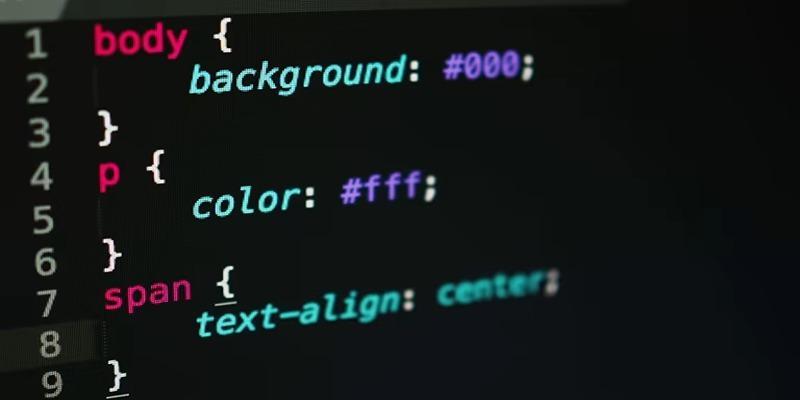
- Theme Customizer: Go to WordPress dashboard > Appearance > Customize > Additional CSS to add CSS with a live preview.
- Stylesheet File: Add custom CSS to the style.css file of your child theme to avoid losing changes during updates.
- Custom CSS Plugin: Use a plugin to apply CSS changes that stay intact even if you switch themes.
Sample CSS Code to Change Background Colors Based on Post Status
The following CSS example demonstrates how to change the background color of posts based on their status (e.g., published, pending, draft):
```
/ Change background color for published posts /
.post-status-publish {
background-color: #e6f7e6; / Light green /
}
/ Change background color for pending posts /
.post-status-pending {
background-color: #fff0b3; / Light yellow /
}
/ Change background color for draft posts /
.post-status-draft {
background-color: #f0d9d9; / Light red /
}
```
To apply this CSS, ensure you have the necessary classes (post-status-publish, post-status-pending, post-status-draft) assigned to your posts. You may need minor modifications in your theme's PHP files, such as adding custom classes to post containers using post_class().
Testing and Verifying the Changes
After adding the CSS, it's important to verify that your changes are working as expected:
- Visit your site and find posts with different statuses (published, pending, draft) in the WordPress admin panel under Posts.
- Check if background colors change based on the CSS rules. If not, clear your browser and server cache.
- Use WordPress tools or browser developer tools (e.g., inspect element) to verify the CSS rules are applied correctly.
Using WordPress Hooks for Dynamic Background Changes
WordPress hooks let developers customize and improve a site without changing core files. There are two types: actions and filters. Actions add custom functionality at specific points during execution, while filters modify data before it's displayed or stored. Hooks give developers flexibility to create dynamic features, like changing background colors based on user roles, post types, or time periods.
Step-by-Step Guide for Implementing Dynamic Background Colors Using Hooks
- Access Your Theme’s Files- Open your WordPress theme’s functions.php file. This file is where most custom hook-related code is added.
- Create a Function for Dynamic Backgrounds- Define a custom function to set dynamic background colors. For example:
```php
function dynamicbackgroundcolors() {
$backgroundcolor = '';
// Example logic to set background colors based on user role
if (isuserloggedin()) {
$user = wpgetcurrentuser();
if (inarray('administrator', $user->roles)) {
$backgroundcolor = '#ffcccc'; // Light red for admins
} elseif (inarray('editor', $user->roles)) {
$backgroundcolor = '#ccffcc'; // Light green for editors
} else {
$backgroundcolor = '#ccccff'; // Light blue for other users
}
} else {
$backgroundcolor = '#ffffff'; // Default white for visitors
}
echo '<style>body { background-color: ' . escattr($backgroundcolor) . '; }</style>';
}
```
- Hook the Function to wp_head
Use the wp_head action hook to inject the dynamic background style into the site’s <head> section:
```php
addaction('wphead', 'dynamicbackgroundcolors');
```
- Test Your Changes- Save the functions.php file and refresh your site. Log in with different user roles or visit as a guest to ensure the background color dynamically changes based on the logic you implemented.
Conclusion
Customizing post background colors by status in WordPress provides clear visual cues, improving workflow and productivity. With simple CSS or WordPress hooks, you can quickly identify post statuses, streamline editing, and manage publishing more efficiently. This feature creates a more organized, intuitive admin experience tailored to your workflow.