Digital camcorders usually create MTS files. These files store high-definition video, but the problem is they're not always easy to play or edit. Some media players struggle with them, and many editing tools don't support them without extra steps. That's where AVI comes in. AVI is a much more flexible format, and converting MTS to AVI can save a lot of hassle. Whether you want to edit footage, play it smoothly, or share it more easily, switching formats makes sense.
Below are eight reliable ways to convert MTS to AVI. These methods range from simple tools you can install in minutes to more advanced software with extra control over how your video is processed.
Best 8 Methods to Convert MTS to AVI
Use VLC Media Player
VLC isn't just for watching videos. It can convert files, too, and it handles MTS format well. Start by opening VLC. From the top menu, go to Media > Convert / Save. Add your MTS file, click Convert / Save, and choose AVI as the output format. You can tweak settings like resolution and bitrate if needed, or just go with the defaults. Pick a destination folder and hit Start. The downside? VLC doesn’t show much progress info, and batch conversion can be slow. But it’s free and available on Windows, Mac, and Linux.
Try HandBrake (with tweaks)
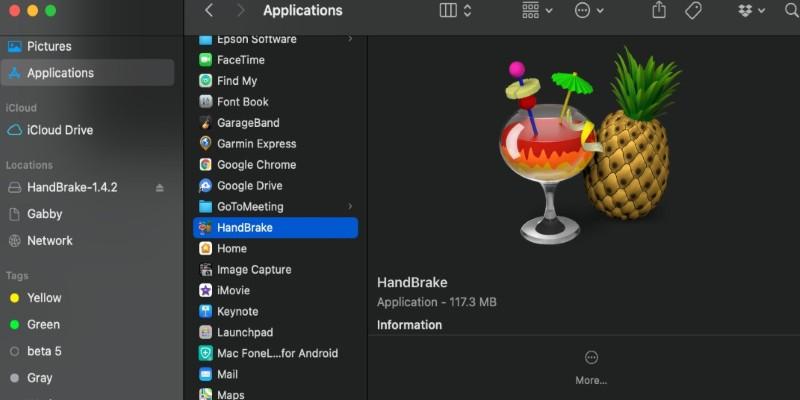
HandBrake is popular for converting video, but it doesn’t support AVI by default. Still, you can work around it. Convert MTS to MP4 first using HandBrake, then use another lightweight tool like FFmpeg or Format Factory to change MP4 into AVI.
Install HandBrake, load your MTS file, choose the MP4 format, and adjust quality settings as needed. Then, run the MP4 file through another converter that outputs AVI. This two-step approach may sound like extra work, but it often leads to cleaner, smaller files.
Use FFmpeg for Full Control
FFmpeg is command-line based and ideal if you want full control. It doesn’t have a GUI, so you type in the commands directly. Here’s a basic example:
css
CopyEdit
ffmpeg -i input.mts output.avi
You can add filters, adjust quality, resize the video, or change audio settings too. It’s very flexible but requires comfort with typing commands. FFmpeg works on Windows, Mac, and Linux and supports batch conversions.
Install Avidemux
Avidemux is a lightweight, no-frills editor that handles MTS files well. Open your MTS file, choose AVI as the output format, and make sure both video and audio settings are correct—select something like Xvid for video and MP3 for audio. Avidemux works quickly and doesn't need a lot of system power. It's useful for trimming clips, too, so you can convert and edit in one go.
Convert Using Any Video Converter (AVC)
Any Video Converter (AVC) has a free version that supports MTS to AVI. It’s more beginner-friendly than tools like FFmpeg and includes profiles for different devices if you're targeting something specific, like a DVD player or an old smartphone. Add your MTS file, pick AVI from the format list, and hit convert. You can adjust the frame rate, bitrate, and resolution if needed, but the default settings work fine for most cases. The interface includes ads in the free version, but they don’t interfere with the results.
Use Format Factory on Windows
Format Factory is a Windows-only tool that supports a wide list of formats. It’s ideal if you want to convert a batch of MTS files into AVI all at once.
Install it, select Video > AVI, then drag and drop your MTS files. You can tweak settings like resolution and encoder type, then click Start.
It’s one of the easier tools to use for large-scale conversions and doesn’t require an internet connection.
Windows Movie Maker (Legacy Option)
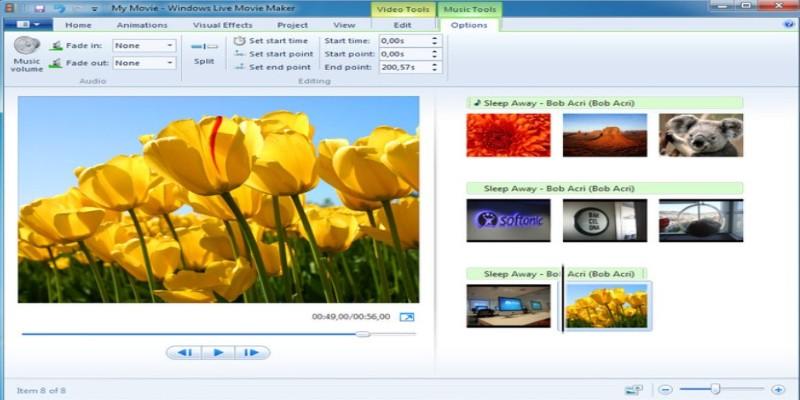
If you're still using an older version of Windows that includes Windows Movie Maker, you can import MTS files, do light editing, and export them as AVI. It's no longer officially supported by Microsoft, but older systems might still have it installed and functional. You can trim clips, add effects like fades or transitions, and export your finished video in AVI format without much hassle. This method is limited to older systems and simpler projects, but it works fine for quick edits and basic conversion when you need a straightforward solution.
Use Online Converters (If File Size is Small)
Web-based tools like Convertio or CloudConvert offer quick conversions without installing anything. Just upload your MTS file, pick AVI as the output, and wait for the download link. These tools are handy if you’re on a shared computer or don’t want to install software. But there are size limits—usually around 100 to 250 MB—and conversion speed depends on your internet. Also, don’t upload sensitive or private videos to online converters. Use them for general content only.
Conclusion
MTS files can be stubborn. Not every player or editor handles them well, and that's why converting them to AVI can save you a lot of trouble. Whether you prefer the simplicity of VLC, the deep control of FFmpeg, or the convenience of an online tool, there’s a method here that suits your style. Choose based on what matters most—speed, quality, control, or ease of use. For quick work, Avidemux or Format Factory is solid. For better quality and more control, FFmpeg leads the pack. For casual users, any video converter or online tool will get the job done with minimal effort. No matter which method you pick, converting MTS to AVI opens up better playback, editing, and sharing options. Keep the one that works best for you, and you won't have to worry the next time you import footage from your camera.